
Produkt
It all comes down to prompts: what the MCP interface in kanbau can do – and where it stops
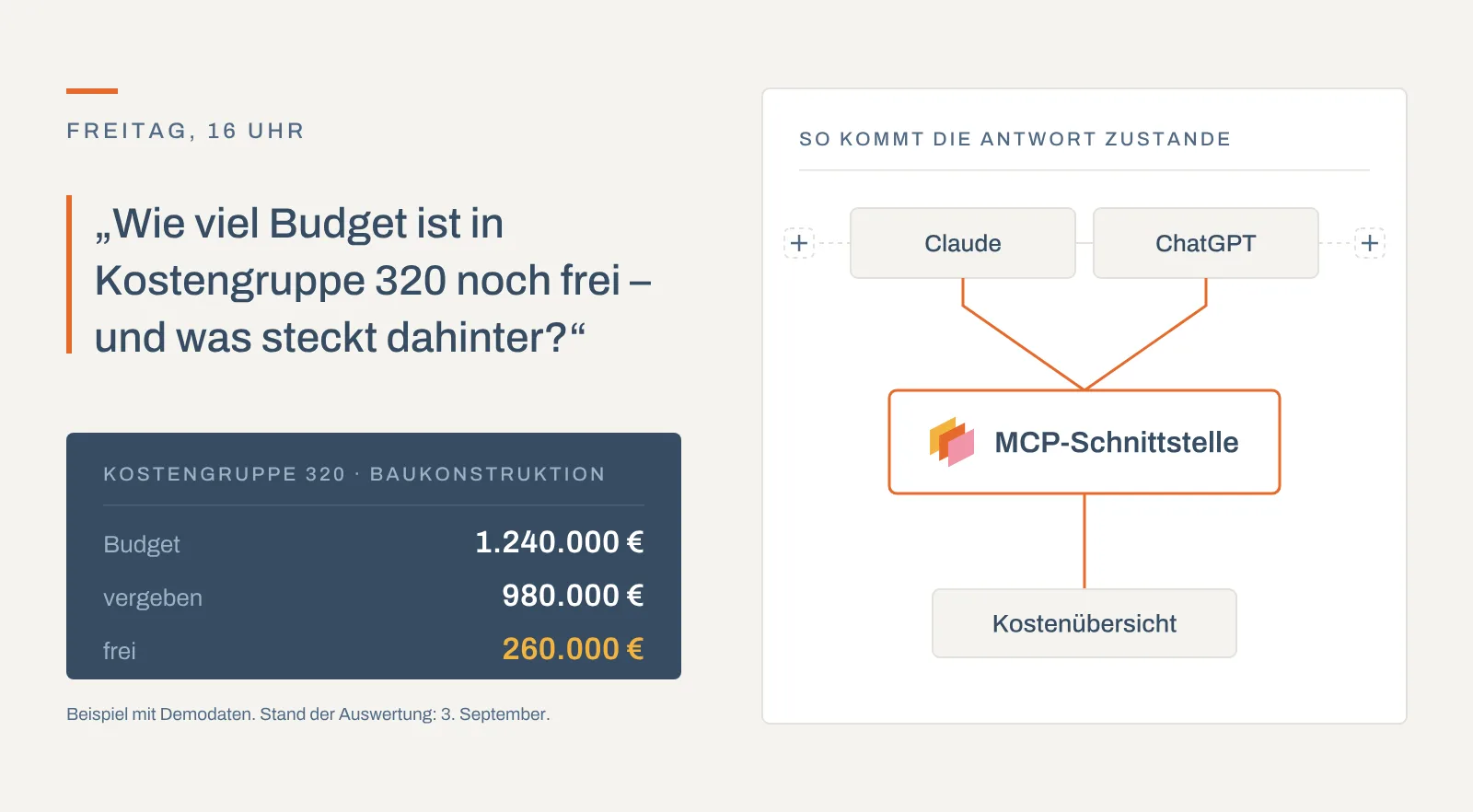
kanbau now has an MCP interface: your AI assistant works directly with your project data – explaining costs, reading contracts, recording invoices.
Your site management records the inspection on the device, pins every entry on the plan and turns a finding into a defect for the subcontractor. A stored retention reduces the subcontractor's next invoice.
We provide the login details for the demo system.
Included in: Standard
Choose the project – date, author and weather are already there. Photos come from the device camera.
Dictation, photos, PDF or text become entries. You check and accept.
Entries sit as numbered markers on the floor plan; the colour shows the state of the defect.
Set the flag, choose the purchase contract, synchronise – photos and location go along.
Defect retentions reduce the subcontractor's incoming invoices until you suspend the deduction.
Preview, signature on the device, sending by e-mail and filing with the inspection.
Choose the project; date, author and weather are pre-filled.
Write entries with photos or let the AI analysis create them from dictation and photos.
Right-click or tap on the floor plan of the storey.
Flag entries as defects, choose the purchase contract and synchronise.
Check the protocol, have it signed on the device, send it by e-mail and file it as PDF/A.
For a property developer an inspection is more than a protocol: a crack in a wall is a defect, a defect has a party responsible, and that party sends its next instalment invoice soon. In the kanbau site diary this is one path without re-entry – from the inspection to the defect to the retention.
Choose the project; date and author are pre-filled. kanbau fetches the weather for the project location, and you can fetch it again for your current location. Tags such as “site inspection”, “unit handover” or “warranty” classify the inspection. Add incidents and instructions, general notes, companies on site with their staff, equipment, meter readings and keys. Additional info links the sales contract of a unit. Photos come from the device camera; further files are attached. Questions are settled in the comments on the inspection.
With the AI analysis you dictate the walk-through or upload photos, a PDF or a text. The AI sorts the content into protocol entries, companies on site, material, weather and notes. kanbau adds them to the inspection, where you check and edit them.
For a single entry the AI evaluates text, dictation and photos, suggests a factual description and recognises whether it is a defect, damage or outstanding work. The suggestion is only applied once you confirm it. The AI analysis requires the usage-based AI support.
Floor plans are uploaded in the project as PDF or image, per storey and with revisions. In the inspection you choose the plan and place an entry right where it belongs by right-click or tap. Existing entries without a location are attached in the same menu. Each entry becomes a numbered marker; its colour shows the state of the defect. The printed protocol shows a floor plan excerpt for every located entry, so the contractor finds the spot without calling back.
Flag an entry as a defect and choose the purchase contract of the subcontractor who has to fix it. If defects are flagged but not yet transferred, kanbau points this out. “Synchronise defects” creates a record in defect management. It takes over text, project, photos and location, the party responsible with trade from the purchase contract, and a first deadline according to your default setting.
In defect management you notify the contractor by e-mail, track the second deadline and set the status. The status feeds back: when the defect is done, the marker on the plan changes colour.
Store a retention on the defect. If “Deduct retention from contract” is active, kanbau includes the sum of these retentions as a defect retention in every incoming invoice for the purchase contract. It is deducted from the checked total before the contractual deductions follow. The rest of the calculation is described on the page invoice processing.
The figures are sample data. When you set the defect to done, kanbau asks whether the deduction should be suspended from now on. Until then the retention reappears on every invoice from that subcontractor without anyone having to remember it.
Before sending, a preview shows the protocol. You choose whether photos and floor plan excerpts are included and whether only the defect report is output. Participants sign on the device. The protocol goes out by e-mail as a PDF and is filed as PDF/A with the inspection, documented in a traceable way. For unit handovers kanbau creates a handover protocol with an acceptance declaration; a custom template is possible.
The overview shows all inspections as a list or as tiles, with date, weather, number of entries, project and tags. Filters for period, project, user and tag narrow the selection, and full-text search finds individual entries.
The site diary is part of the Standard package. Terms for the AI support are listed in the price list – request it here.
The digital site diary in kanbau documents site inspections, unit handovers and warranty inspections per project. Each inspection has a date, weather, tags, photos and a protocol of individual entries that you can pin on the floor plan and flag as defects.
The weather in the site diary is fetched by kanbau for the project location when an inspection is created, with temperature and description. If needed, you fetch it again for your current location.
The AI analysis in the site diary turns dictation, text, a photo or a PDF into structured content: entries, companies on site, material, weather and notes. kanbau adds them to the inspection, where you check and edit them. For a single entry the AI suggests a text based on the photos and recognises whether it is a defect; nothing is applied until you confirm. It requires the usage-based AI support.
Defects from the site diary reach the invoice through the defect retention. If the defect has a retention and “Deduct retention from contract” is active, kanbau deducts the sum of these retentions on every invoice for the purchase contract. When you set the defect to done, kanbau asks whether to suspend the deduction.
Every module uses the same data – nothing is entered twice.
kanbau now has an MCP interface: your AI assistant works directly with your project data – explaining costs, reading contracts, recording invoices.

New in kanbau: the site diary for property developers – AI text recognition, automatic weather data, digital signatures and PDF in one click.

Choosing software for property developers: an all-in-one approach, speed, mobility and ease of use as criteria – and how kanbau addresses them.
30 minutes, with your questions and your processes.
Book a demoor call: +49 911 477 133 80